
Nairi Logo

GUIDE:

To learn how to get started with Nairi, read our getting started guide!

Note: In this guide, <p> refers to the command prefix. By default this is “n” but can be changed per server.

[⚙️]Commands:

  • Spawn / S:
    • Spawn three cards.
  • Cooldown / Cd:
    • Check your cooldowns
  • Collection / C:
    • View your card collection.
  • Burn / B <cardcode>:
    • Burn an individual card for Naicoins.
  • Massburn / mb <cardcode> <cardcode> <cardcode>…:
    • Burn multiple cards at once.
  • Daily:
    • Claim your daily streak.
  • Gift / G <user> <cardcode>:
    • Gift a card to another user.
  • Lookup / Lu <name>:
    • Lookup information about a character.
  • Serieslookup / Sl <series>:
    • Lookup information about a series.
  •  
  • Inventory / I / Inv:
    • View your inventory.
  • Trade / Mt <user>:
    • Initiate a trade with a user.
  • View / V <cardcode>:
    • View a card.
  • Wish / W:
    • Use a wish to drop a card from your wishlist.
  • Wishlist / Wl:
    • View your wishlist.
  • Vote:
    • Vote for the server to gain rewards.
  • Shop:
    • Display the item shop.
  • Buy <item>:
    • Buy an item from the shop.
Frames:
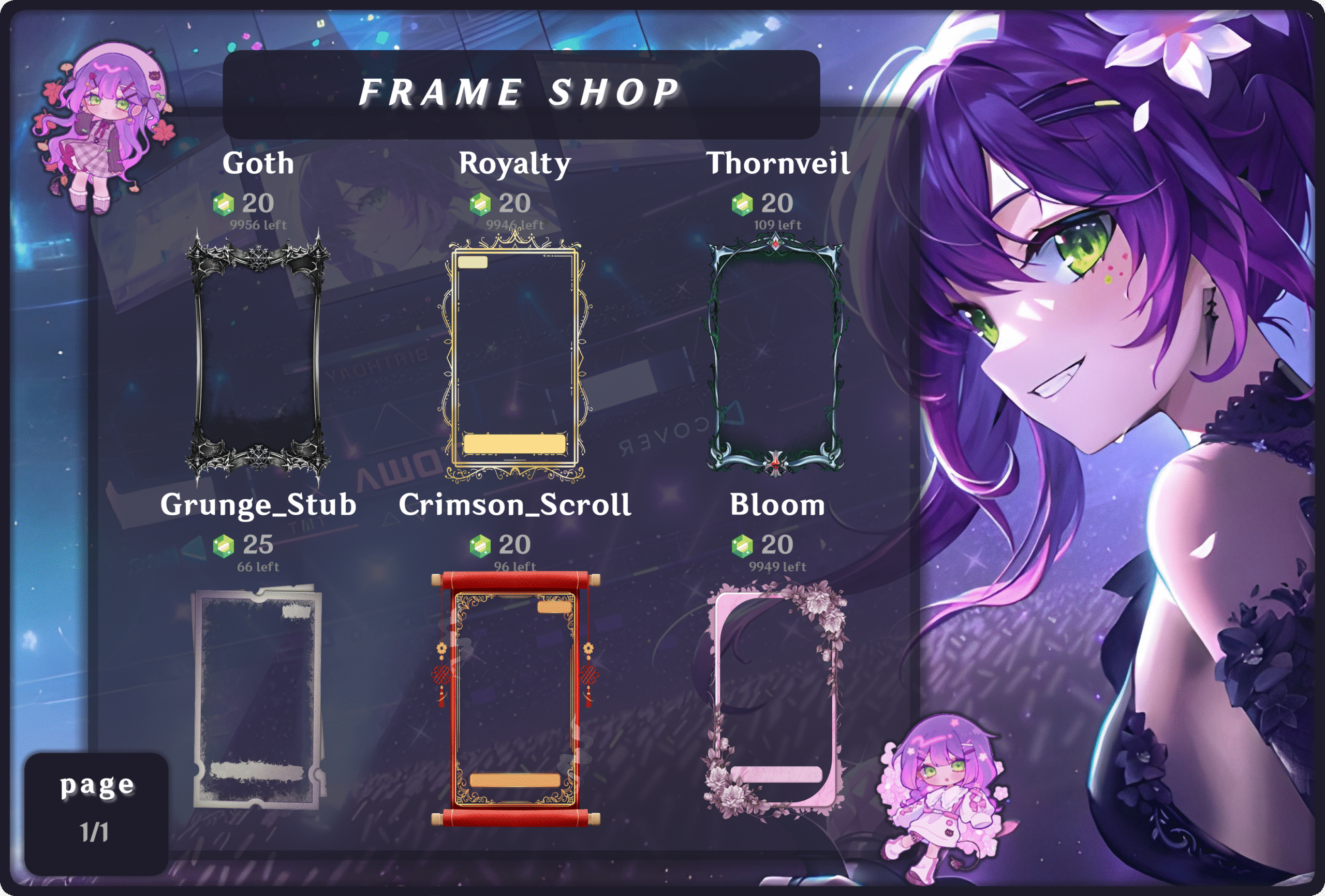
  • Frameshop / Fs:
    • Display the frame shop.
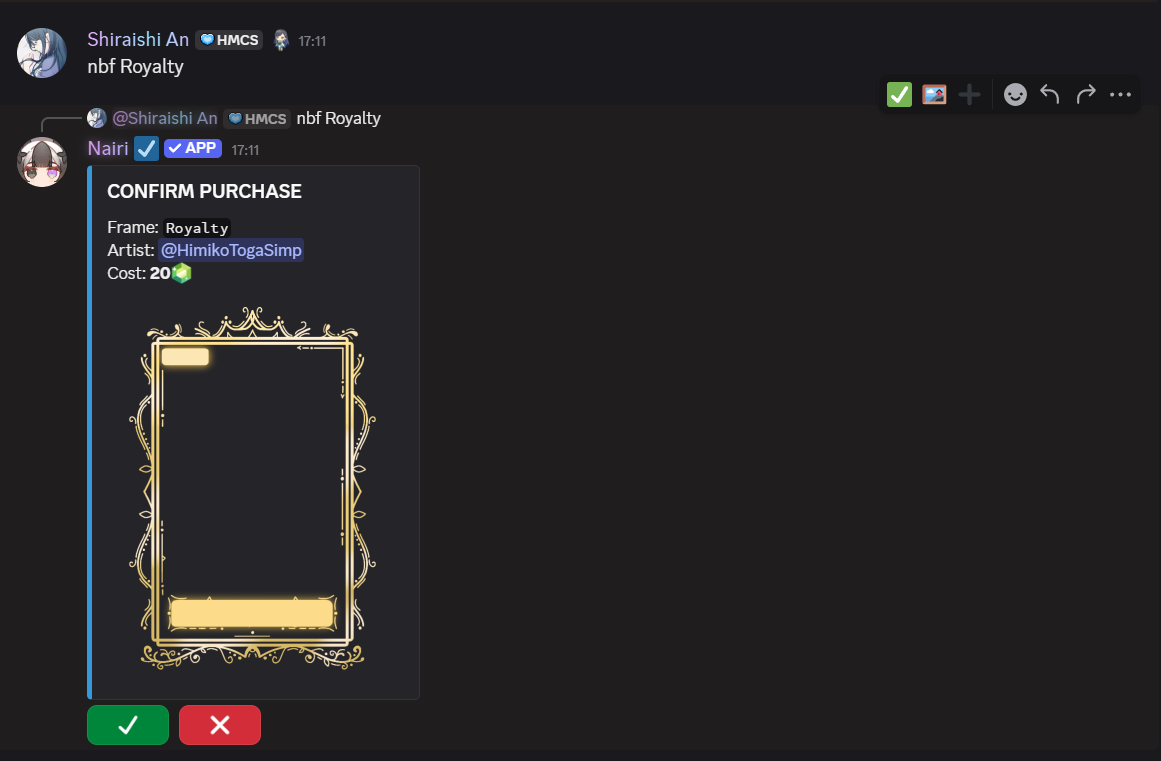
  • Buyframe / Bf <framename>:
    • Buy a frame from the shop.
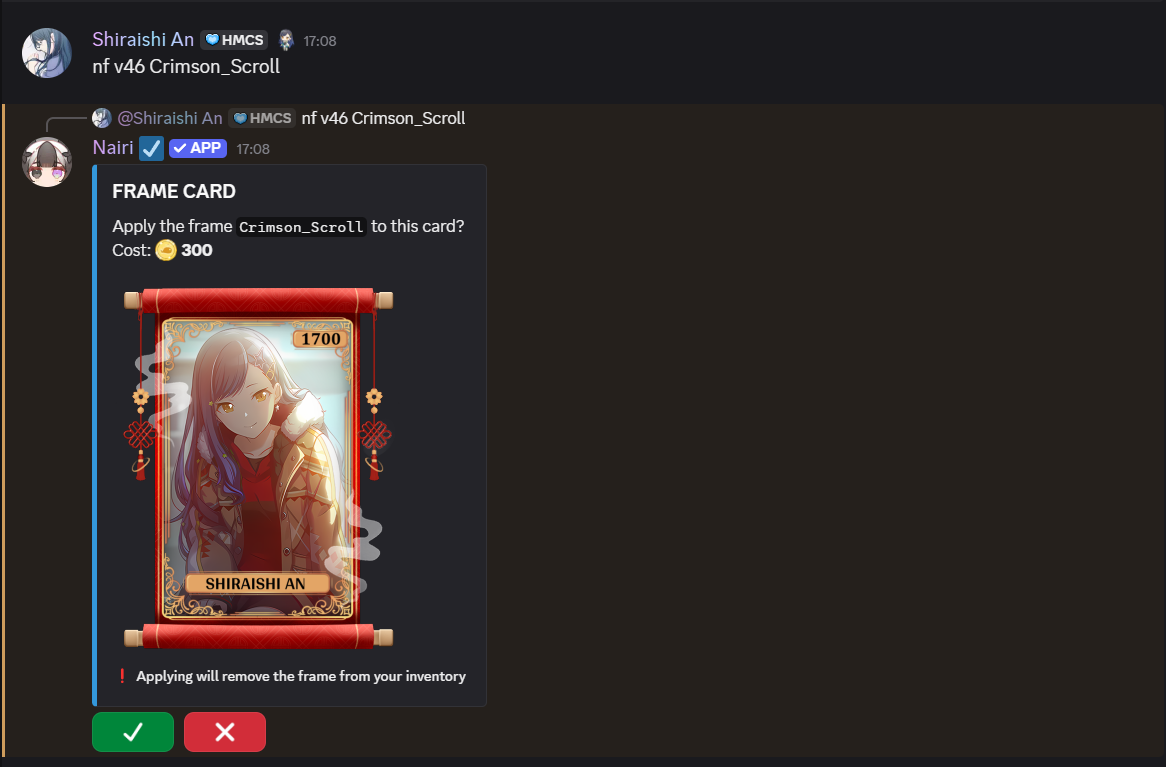
  • Frame / F <cardcode> <framename>:
    • Apply a frame to a card.
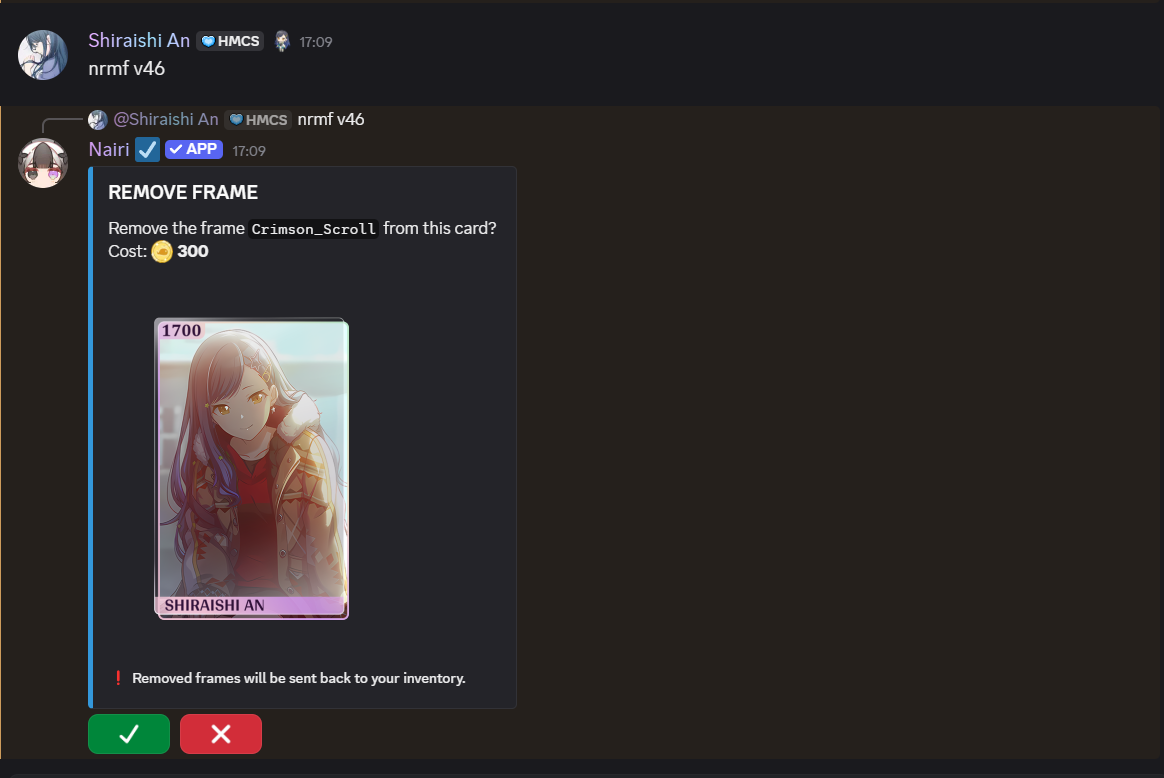
  • Removeframe / Rfm <cardcode>:
    • Remove a frame from a card.
Glows:
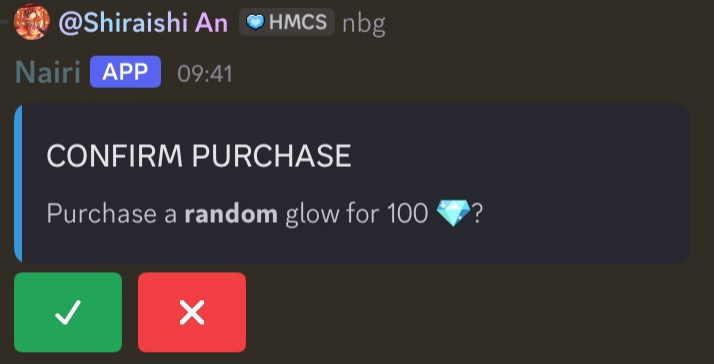
  • Buyglow / Bg:
    • Buy a random glow.
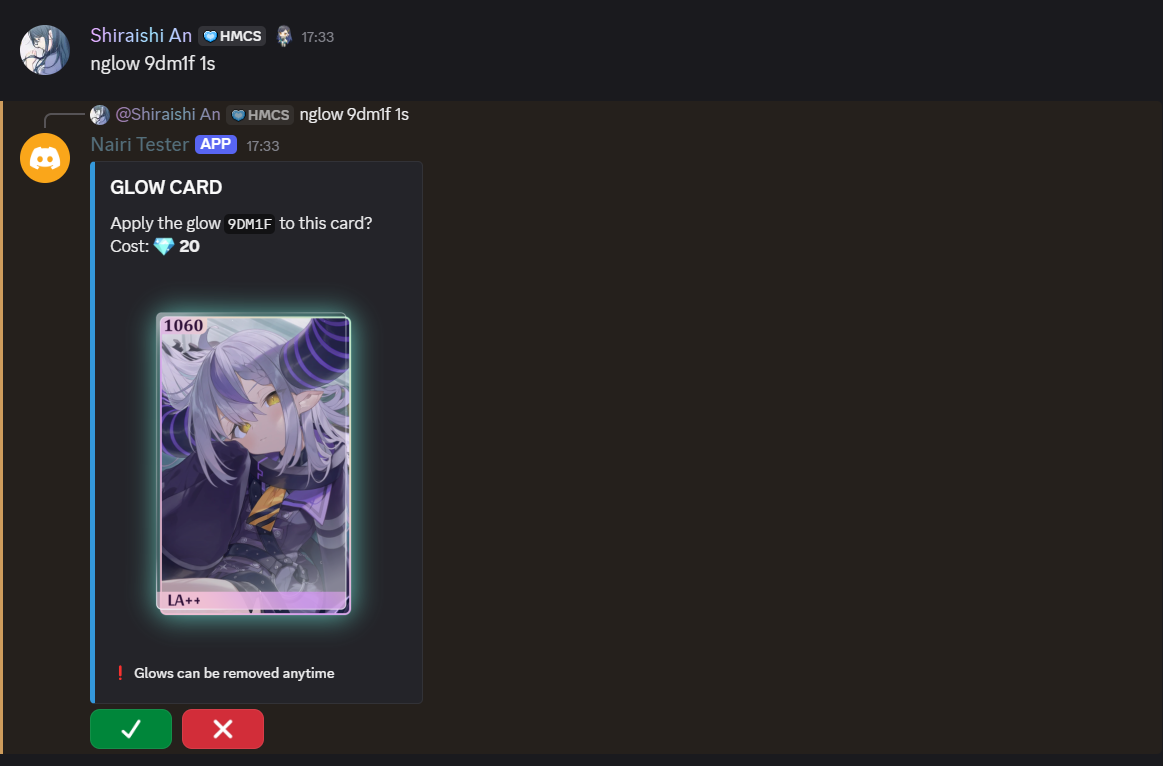
  • Glow <cardcode> <glowcode>:
    • Apply a glow to a card.
  • Viewglow / Vg <glowcode>:
    • View a specific glow.
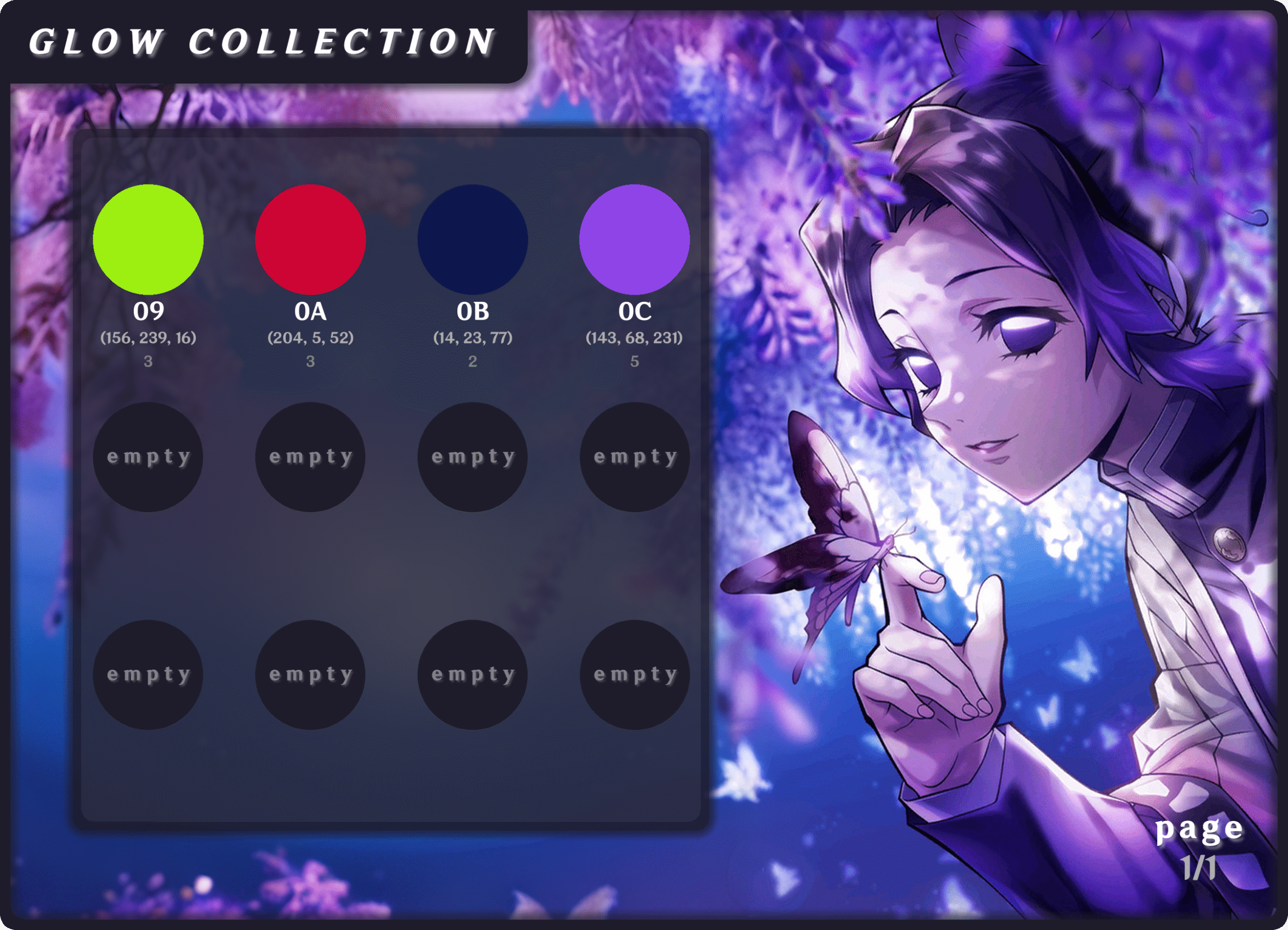
  • Glowcollection / Gc:
    • View your glow collection.
  • Testglows / Tg <glowcode> <glowcode> <cardcode>:
    • Test one or more glows on your card.
  • Removeglow / Rmg <cardcode>:
    • Remove a glow from your card.
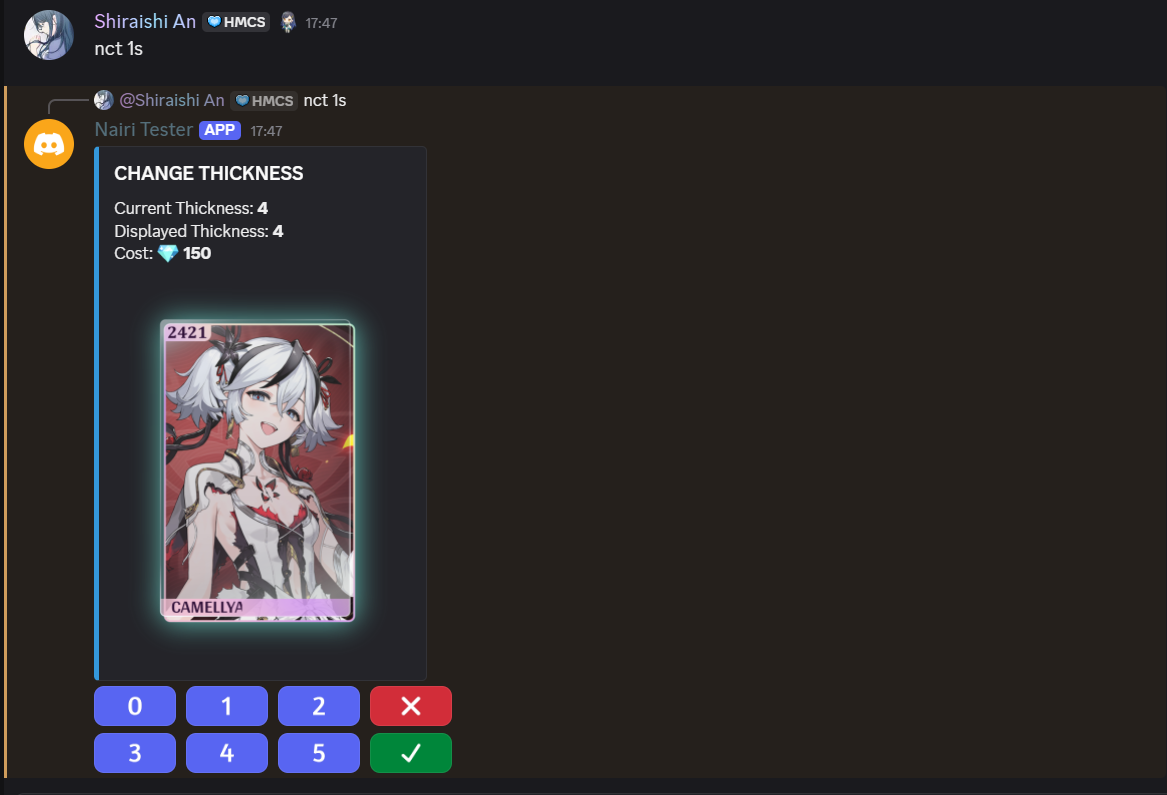
  • Changethickness / Ct <glowcode>:
    • Change the thickness of a glow.
Tints:
  • Tint <cardcode>:
    • Apply a random tint to your card.
  • Removetint <cardcode>:
    • Remove a tint from your card.
Hue:
  • Hue <cardcode>:
    • Apply a random hue to your card.
  • Removehue <cardcode>:
    • Remove a hue from your card.

Tags:

  • Tag / T <cardcode> <tagname>:
    • Apply a tag to a card.
  • Tagcreate / Tc <tagname> <emoji>:
    • Create a new tag.
  • Tagdelete / Td <tagname>:
    • Delete a tag.
  • Tagedit / Te <tagname>:
    • Edit a tag.
  • Taglist / Tl:
    • List your tags.
  • Removetag / Rt:
    • Remove a tag from a card.
  • Profile / Pro <user>:
    • View a users Nairi profile (defaults to yourself).
  • Profilesetup / Ps:
    • Edit your Nairi profile.
  • Userinfo / Ui <user>:
    • View a users Nairi info (defaults to yourself).
  • Setprefix / Sp <prefix>:
    • Set command prefix. 
  • Blacklistall / Ba:
    • Blacklist all commands in a channel.
  • Blacklistcommand / bc <command>:
    • Blacklist command in a channel.
  • Help <command>:
    • Shows info about a command. (Shows general help page if <command> is empty)
  • Register:
    • Register yourself with the bot.
  • Patron:
    • Support Nairi and receive monthly rewards.
  • Whitelistall / Wa:
    • Whitelist all commands in a channel.
  • Whitelistcommand / Wc <command>:
    • Whitelist command in a channel.

[📄] General Information:

Spawning
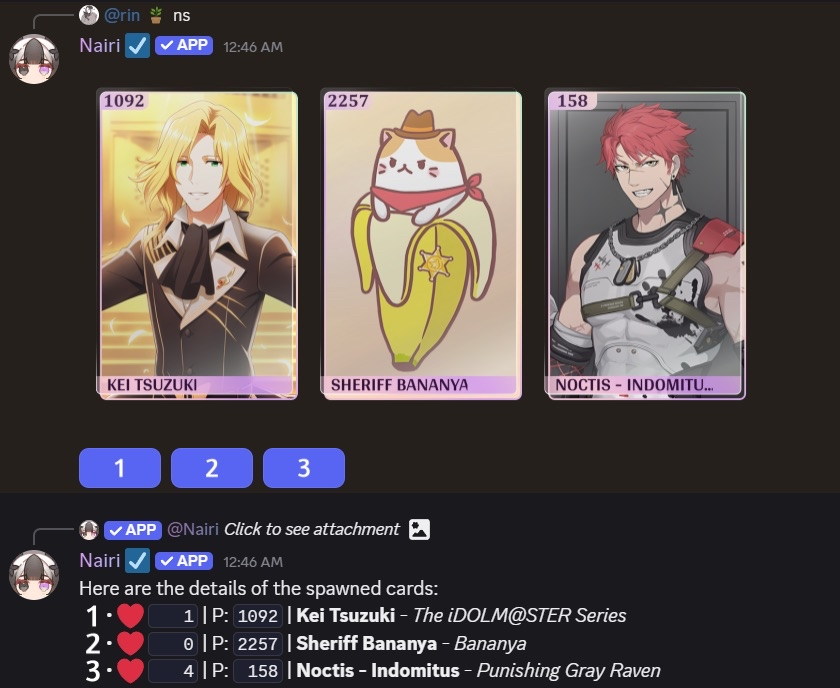
  • You can spawn a set of three cards using these commands: <p>S or <p>Spawn.
    • When you spawn, the following details for the three cards will also show in the order:
      • Wishlist count – Print number – Name – Series
  • You can also do extra spawns with <p>W or P<Wish>:
    • Note: each extra spawn costs 1 , as well as each extra claim. They can be purchased by running the <p>Buy wish or <p>Buy claim command.
  • Print numbers can range anywhere from 1 to 2500
    • 11-100 being rarer than the others, commonly known as low print.
    • 1-10 being much rarer, commonly known as exclusive print.
  • Print numbers 1-2500 are repeatable, while prints 1-10 are non-repeatable.
    • Example:
      • If a P-1000 Tokoyami Towa exists, another P-1000 Tokoyami Towa can also exist, This would be the case with low prints.
      • On the contrary, if a Tier 1 P-1 Tokoyami Towa exists, another T1 P-1 Tokoyami Towa cannot exist. However, a Tier 2 P-1 Tokoyami Towa can exist.


Note: each tier will have their own P1-10 and will follow the same rules.
 

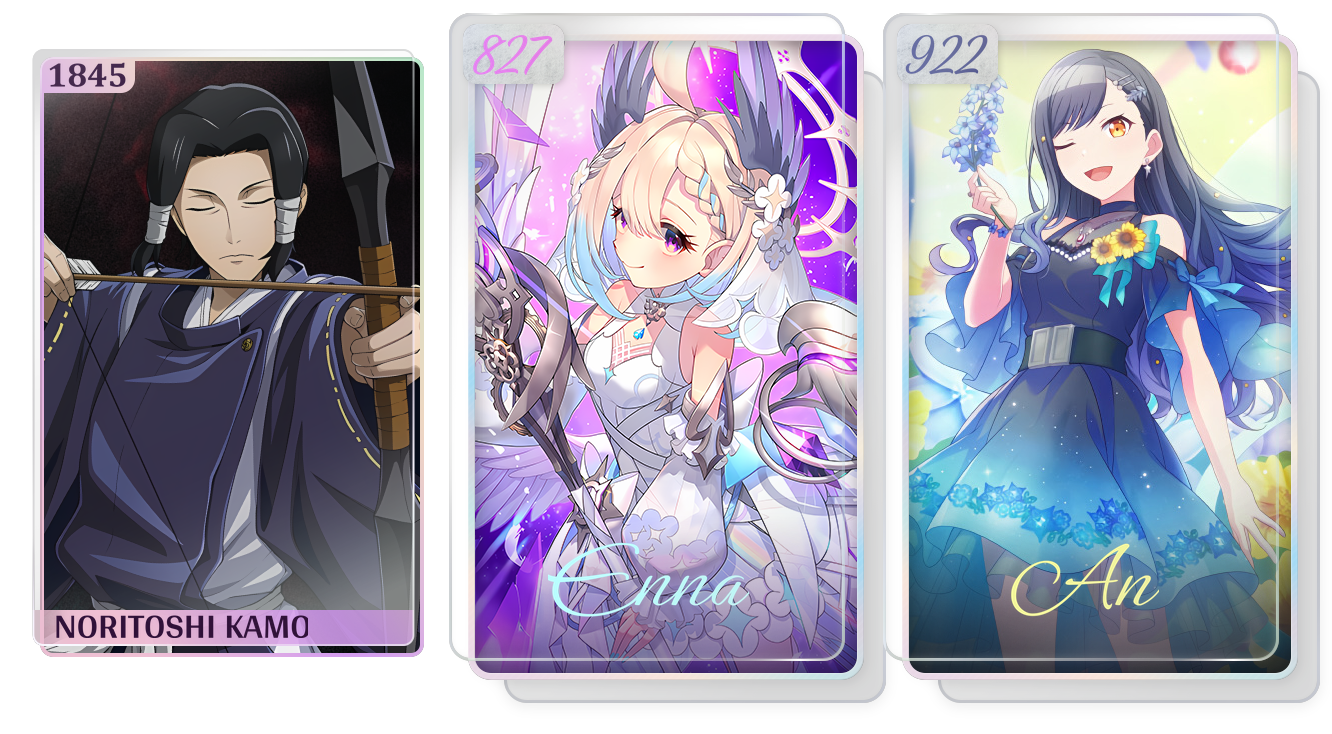
‎ We currently have two tiers in the bot: Tier 1 (T1) and Tier 2 (T2).

  • Tier 1: Our first and most common cards, their prints can range anywhere between 1-2500 and you can get them by spawning.
  • Tier 2: A bit rarer than T1s, not all characters will have a T2 variant. Their prints can range anywhere between 1-999 and you can get them by spawning.
tier_example

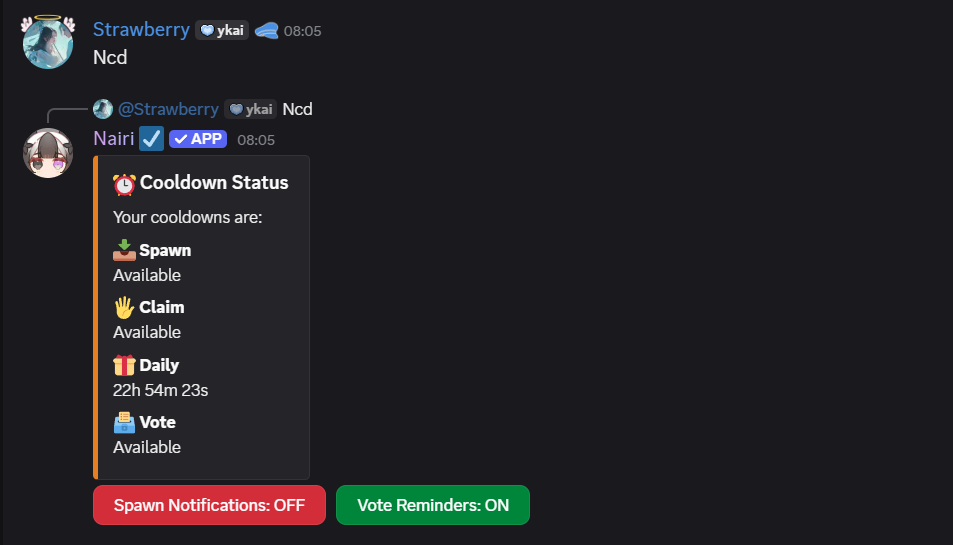
By running the command <p>Cd or <p>Cooldown, you can also check your cooldown for:

  • Your spawn (10 minutes)
  • Your card claim (5minutes)
  • Your daily (24 hours)
  • When you can next vote (12 hours)
Cooldown_Example
Notifications

You can turn on and off your notifications by clicking the buttons in the the <p>Cd menu.

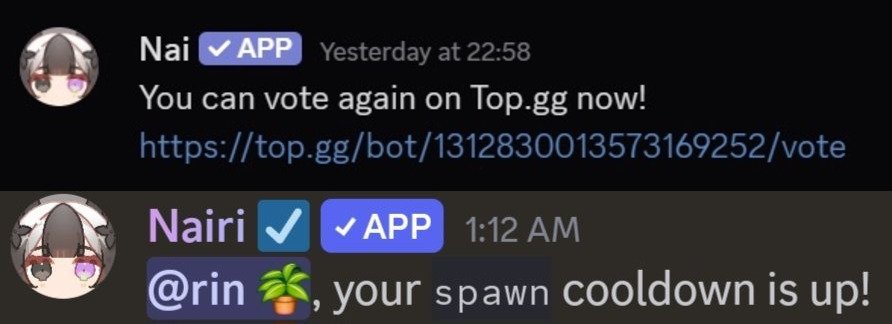
  • When turning on spawn notifications, Nai will ping you once your cooldown is up.
  • When turning on your vote reminders, Nai will send you a DM when your vote is available.
Vote example

[🃏] Card Collection

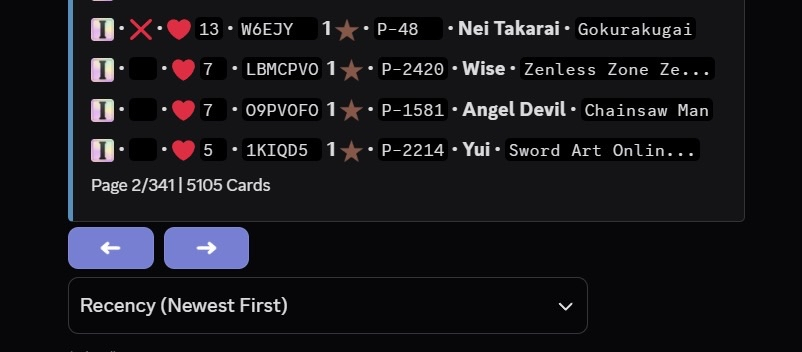
  • You can view all of the cards you own by using the command: <p>C or <p>Collection.
    • When checking your collection you’ll be able to see the Tier icon displayed on the left side followed by:
      • Tag
      • Wishlist count
      • Card Code
      • Rating
      • Print Number
      • Character name
      • Series
  • Cards can be sorted using the drop down menu at the bottom, you can sort by:
    • Recency
    • Character name (A-Z) (Z-a)
    • Series name (A-Z) (Z-A)
    • Print number (Low-High) (High-Low)
    • Wishlist count (Low-High) (High-Low)

Cards can also be filtered by running different commands:

General filters:

  • Tags:
    • Check cards from a specific tag: <p>C t=<tagname>.
    • Check cards without any tags: <p>C ut=t.
  • Tiers and levels:
    • Filter the collection by tiers: <p>C ti=<tier>.
    • Filter your collection by card level: <p>C lvl=<level>.
  • Codes:
    • Check for a specific code in your collection: <p>C code=<cardcode>.
    • Filter your collection by code length: <p>C cl=<length>.
  • Print & Wishlist:
    • Check cards with print numbers under or over a certain range:
      <p>C p><number><p>C p<<number><p>C p=<number>.
    • Check cards with wishlist count under or over a certain range:
      <p>C wl><number><p>C wl<<number><p>C wl=<number>.
  • Series and name:
    • Filter the collection by series name: <p>C s=<seriesname>.
    • Filter the collecction by character name: <p>C n=<charactername>

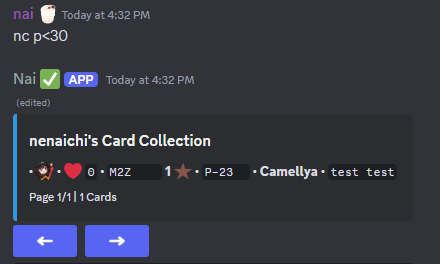
Example: picture below shows a card with the Print number under 30. Works the same way for Wl.

Cards with cosmetics can also be filtered by running different commands:

Cosmetic filters:

  • Tints & Hues:
    • Filter your collection by tinted cards: <p>C tint=true/false or <p>C tint=t/f.
    • Filter your collection by hued cards: <p>C hue=true/false or <p>C hue=t/f.
  • Frames:
    • Check your framed cards: <p>C f=true/false or <p>C f=t/f.
  • Glow:
    • Check cards with a glow applied: <p>C g=true/false or <p>C g=t/f.
      • Note:True means the card has the cosmetic on, False meaning the opposite.


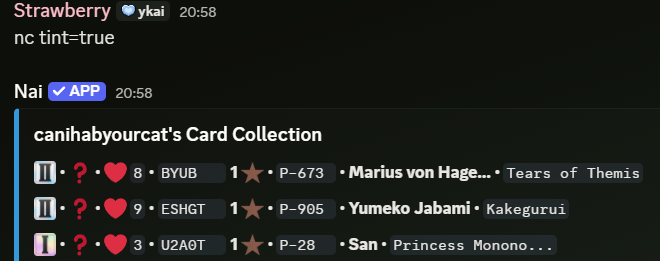
Example: picture below shows tinted cards. Works the same way for Hue, Frame, Glow.
 

Tags are used to group cards for a better organization of your collection. These are the available commands for tags:

Create a tag:

  • To create a tag use: <p>tc <tagname> <emoji> or <p>tagcreate <tagname> <emoji>.
    • Example: <p>tc favourites :Bocchi_What:.
    • Note: you can now use custom emojis for tags. Keep in mind Nai needs to be in the server the emoji is from. If Nai is no longer a member of the server, the tag emoji will be shown as .

Delete a tag / untag a card:

  • Tags can be deleted at any time by using: <p>Td <tagname> or <p>Tagdelete <tagname>.
  • To untag a card use: <p>Rt <cardcode> or <p>Removetag <cardcode>
    • Example: <p>Rt m2z
    • Note: cards from deleted tags will become untagged.

Editing and & assigning a tag:

  • You can edit a tag’s emoji or name by using: <p>Te <tagname> or <p>Tagedit <tagname>.
  • To assign tags to your cards, run the command: <p>T <cardcode> <tagname> or <p>Tag <cardcode> <tagname>.
    • Example: <p>T m2z favourites
    • Note: running the <p>t <tagname> command without specifying a card code will tag the latest card you claimed.

Checking your tag list:

  • You can check your own tag list by running the command <p>Tl or <p>Taglist.
  • You can also check someone else’s tag list by running the command <p>Tl <user> or <p>Taglist <user>.

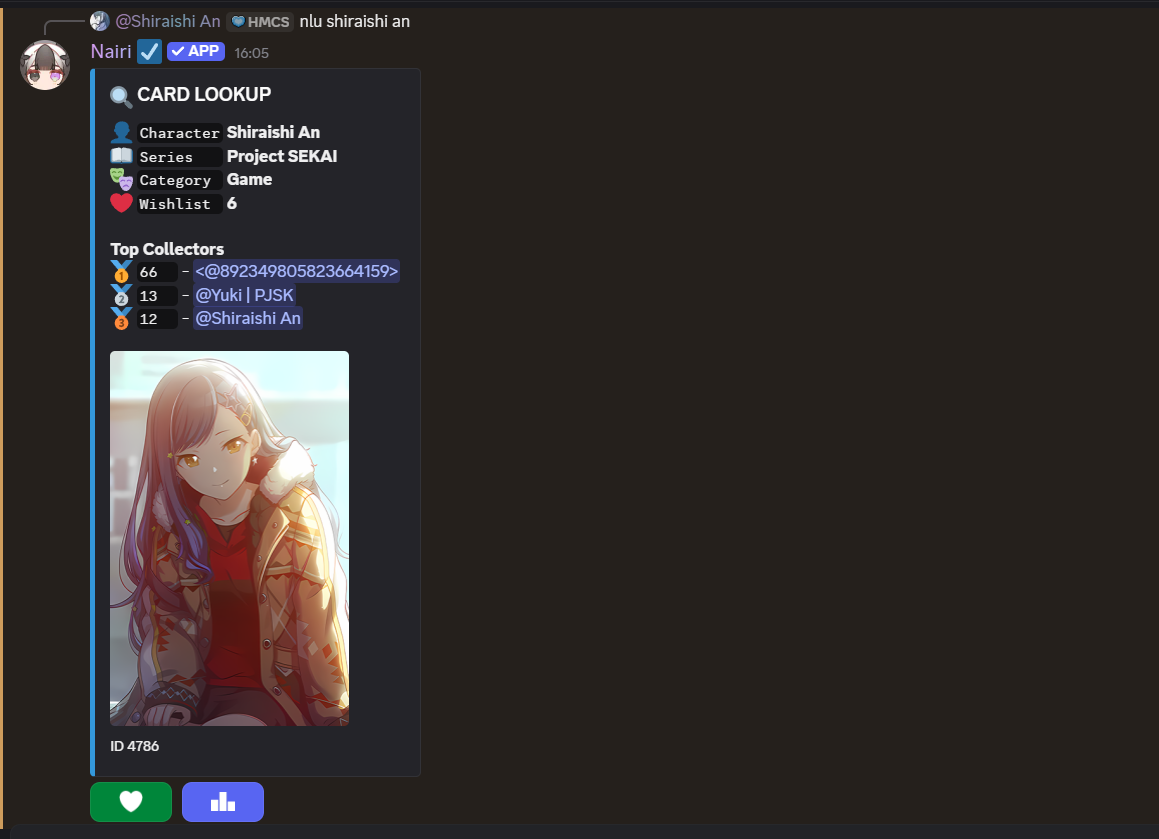
You can search any character and series available in Nairi.

  • To look up a series, run the command: <p>Sl <seriesname>.
  • To look up characters, run the command: <p>Lu <charactername>.
  • You can also check the 10 lowest print of each character by clicking :nPodium:. This is commonly known as the leaderboard.
    • Note: T1 and T2 do not share the same print leaderboard. However, every tier will share the same top three collectors.

To check the available tiers for each character, use the drop-down shown below:

  • Example: To view the T2 variant of a character, click on the drop-down menu and select “Variant 2″. Note that not all characters will have a T2 variant.
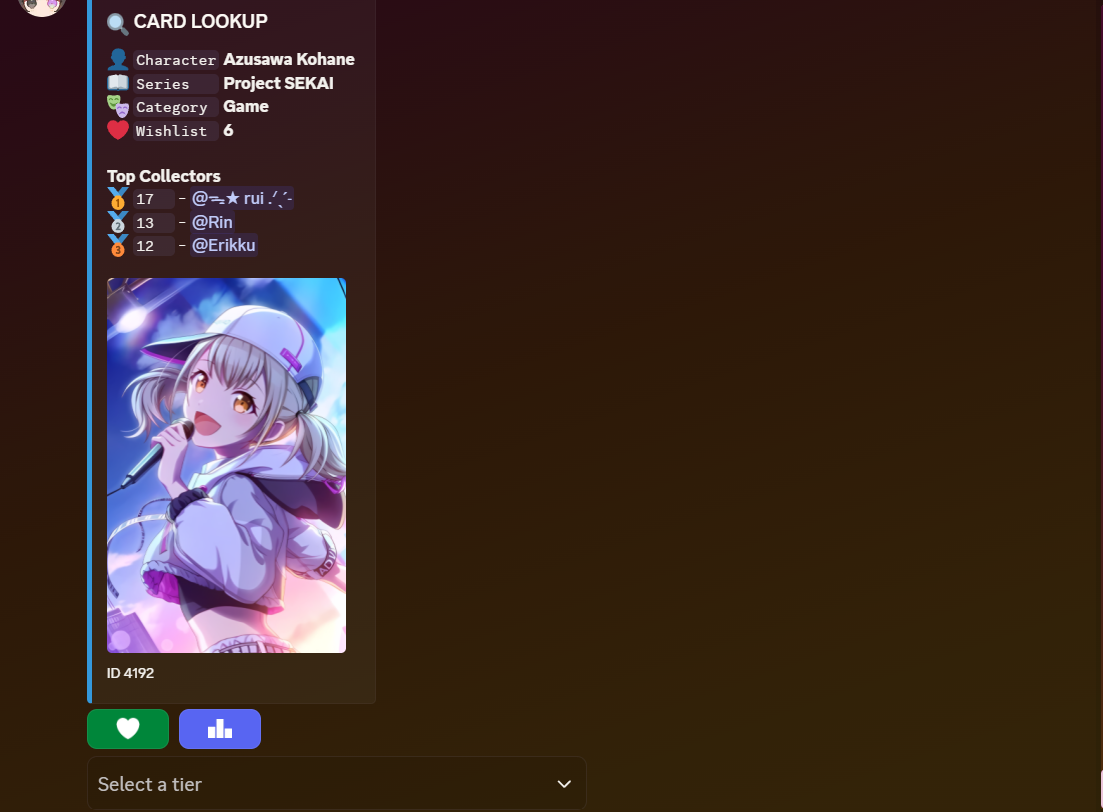
You can add a character to your wishlist by clicking . If you wish to remove the character from your wishlist, click again.
 
  • Burn cards you own for Naicoins by using: <p>B <cardcode> or <p>Burn <cardcode>.
    • Note: Running the <p>B command without specifying a card will burn the most recently claimed card.
  • Burn cards in bulk with: <p>Mb <cardcode> <cardcode>… or <p>Mb <filter>.
    • Note: Running the <p>Mb command without specifying cards or a filter will burn all of your cards.


Note: burned cards go back into the pool. This means codes and prints (including exclusive prints) can re-spawn at any time by any player.

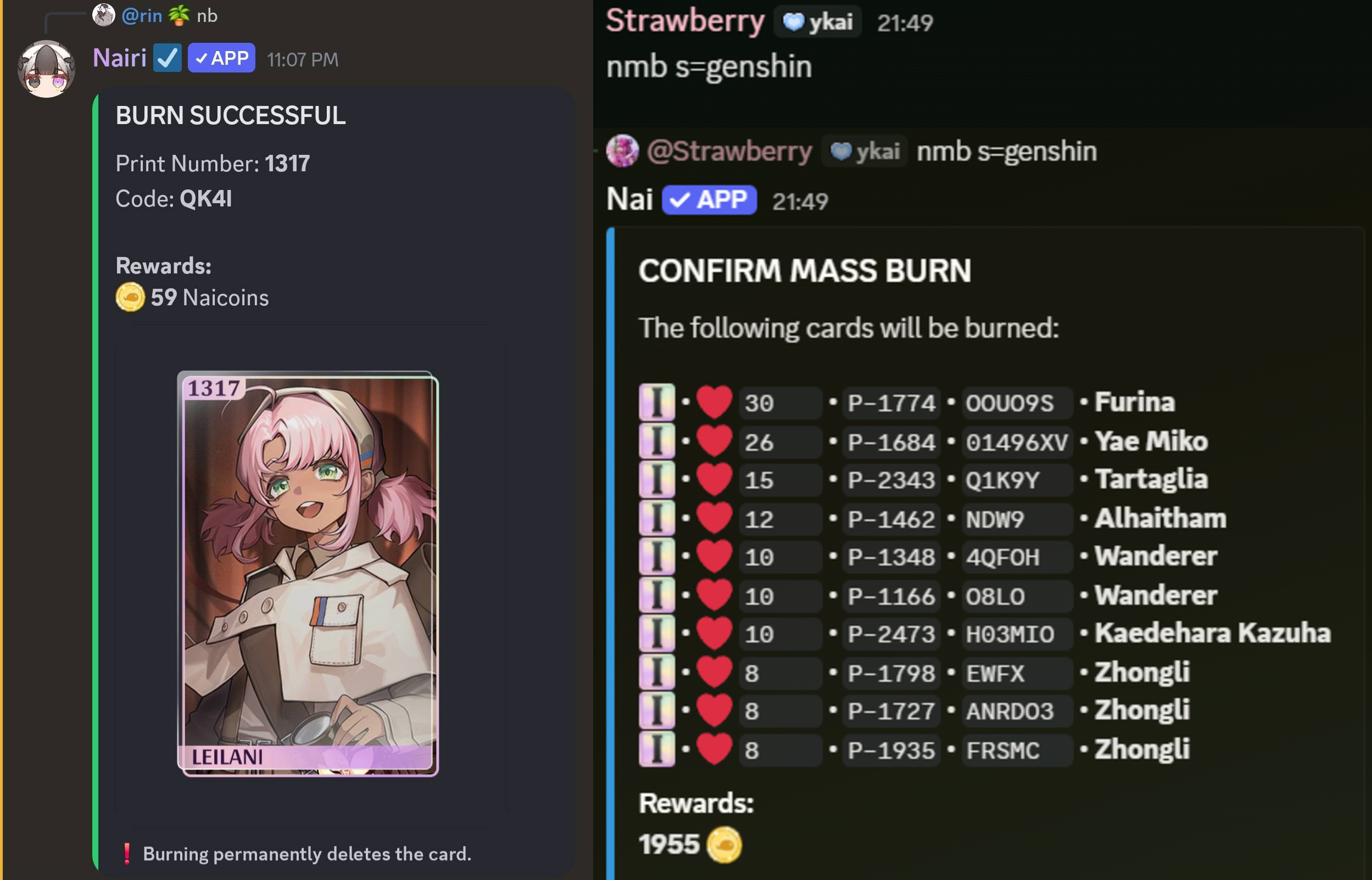
Example: The pictures below show both cases, single card burning and massburning:

[🎨] Hue & Tint:

Hues replace the frame’s original colors by rotating them around the color wheel.

Hue Commands:

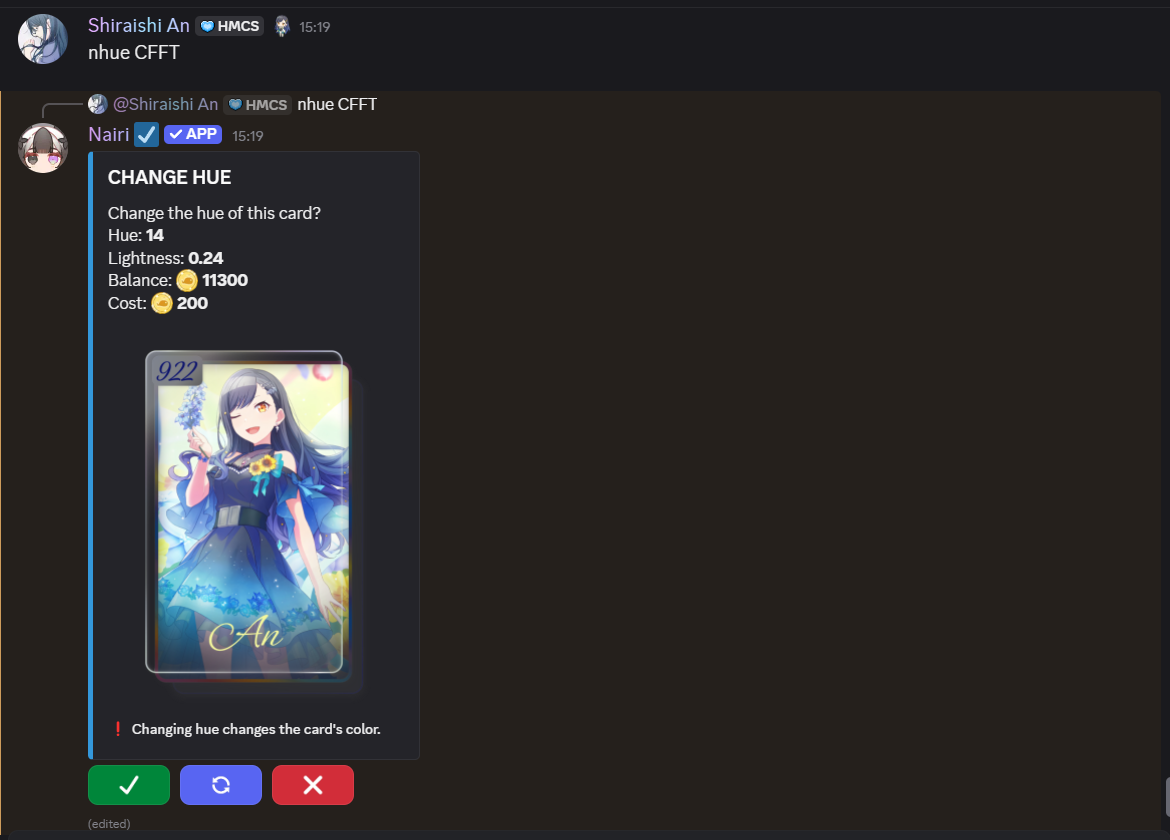
  • To apply a hue, run the command <p>Hue <cardcode>.
    • You can reroll by clicking the button, but note that each roll costs 200
  • to remove a hue, run the command <p>Rmh <cardcode.
    • Removing a hue costs 500

How it works:

  • It operates in the HLS color space and rotates the colors using the angles in the color wheel.
  • It preserves the original saturation (intensity of color) and lightness (brightness / darkness of a color), mostly.

Notes:

  • Hues can only roll gradients for unframed cards because the original regular frame already has a gradient. This won’t always be the case for custom frames.
  • Depending on their design, custom frames might look messier with a hue applied. Results can vary a lot.

Pros:

  • Full re-coloring of the frame. 
  • Makes unframed cards look pretty and unique, still.
  • Works great on mostly flat/simple frames.

Cons:

  • Can flatten or mute details on ornate or more detailed frames.
  • May blur metallic, glows or detailed effects in a frame.
  • Grayscale or low saturation areas may barely change or become the same color.
  • :_1no: Struggles with similar-looking colors, especially if they are low in saturation or close in lightness (i.e grey and a darker grey would get recolored into the same exact tone, removing contrast).
Tints

Tint adds a colored overlay to the card’s frame, it’s somewhat like a filter.

Tint Commands:

  • To apply a tint, run the command <p>Tint <cardcode>.
    • You can reroll by clicking the button, but note that each roll costs 200
  • to remove a tint, run the command <p>Rmt <cardcode.
    • Removing a hue costs 500

How it works:

  • A random RGB color is chosen and blended over the frame.
  • The frame’s original colors are still there underneath, but they’re now influenced by the tint.
  • The lightness value controls it’s strength and opacity (how strong or soft the tint is, essentially)

Notes:

  • Tint doesn’t replace the original frame’s colors, it blends with them.
  • The more intense the tint and the brighter the lightness, the more dominant the effect becomes.

Pros:

  • Preserves textures, shadows, glows and details.
  • Works great on both ornate/drawn and flat frames.
  • Can shift tone/mood subtly or dramatically.

Cons:

  • Doesn’t fully change the original colors.
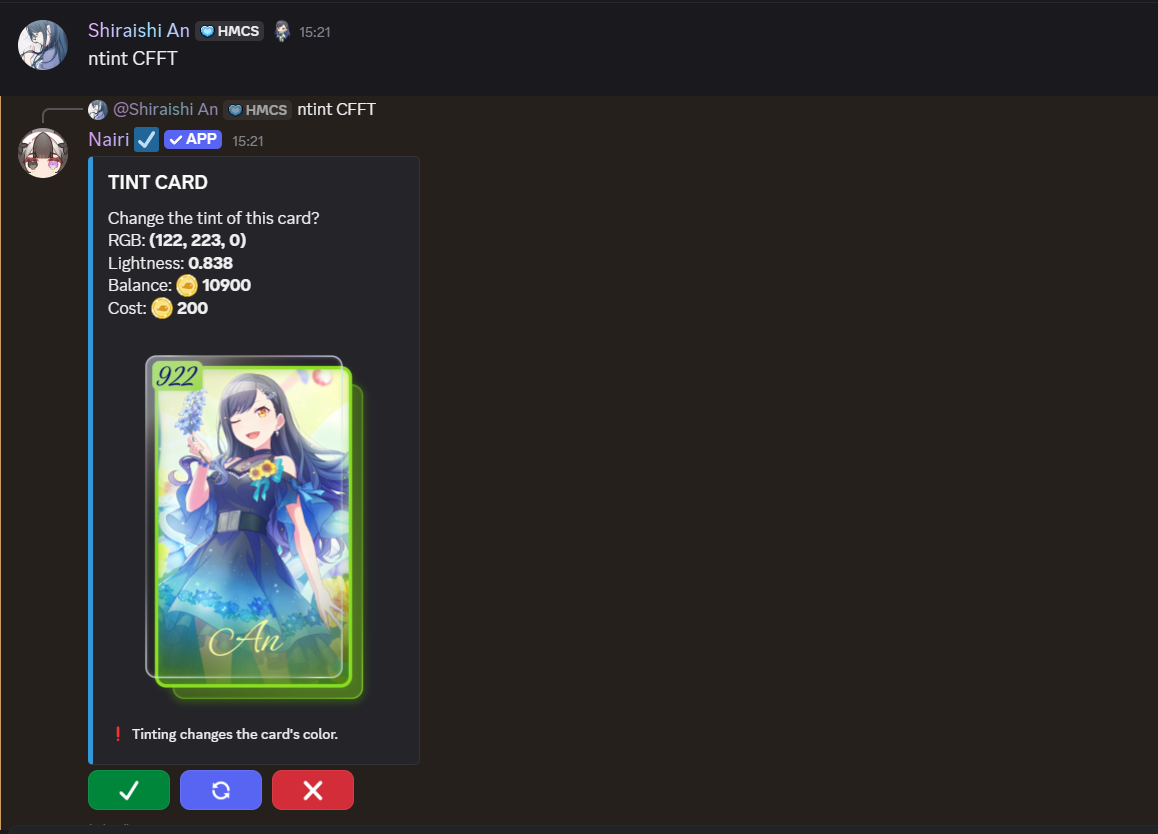
Tint values:

  • Black:
    • RGB = (0, 0, 0)
    • Lightness = 1
  • White:
    • RGB = (255, 255, 255)
    • Lightness = 1

Huge Values:

  • Black:
    • Hue = Any
    • Lightness = 0
  • White:
    • Hue = Any
    • Lightness = 1

Tips for choosing between a hue and a tint when applying to a custom frame:

  • Simple frames:
    (i.e Royalty and Grunge_Stub)
    • Both hue ant tint work great with frames that are simply colored and don’t have a lot of texture or detail.
  • Ornate / detailed / metallic frames:
    (i.e Thornveil, Crimson_scroll and Goth)
    • Tint would look best for these kind of frames, as it will keep the shines, glows, engraving, and more details.
    • Hue can flatten the depth, mess up similar colors and turn shiny metal into flat colors.
  • Painted / stylized frames:
    (i.e Dandelion_Dream and Heavenly_Gaze)
    • Tint would preserve all original details, shadows and highlights.
    • Hue would merge and flatten colors, remove contrast and make details look unnatural.

[🖼️] Frames:

Frames are cosmetics that can be applied to cards. Each tier have their own frames, meaning that T1 frames can only be applied to T1 cards.

Apply a frame:

  • You can now apply frames by using <p>F <cardcode> <framename> or <pf>Frame <cardcode <framename>.
    • Applying a frame costs 300
    • Note : running the <p>F command without specifying a card code will apply the frame to your latest card.

Remove a frame:

  • You can remove a frame with <p>Rmf <cardcode> or <p>Removeframe <cardcode>.
    • removing a frame costs 300
    • Note : running the <p>Rmf command without specifying a card code will apply the frame to your latest card.

Trade frames:

  • To add frames to a trade use f:<framename>
    • Example A: f:Crimson_scrol

    • Example B:
      f:Crimson_Scroll
      f:Crimson_Scroll
      f:Royalty
  • You can check available frames in the shop by using <p>Fs or <p>Frameshop.
    • The frame shop displays the frames’ names, prices, stock and images showing how they look.

Purchasing frames:

  • You can check available frames in the shop by using <p>Bf <framename> or <p>Buyframe <framename>.
    • Note: Frame names are case sensitive, type the frame name exactly as showing in the frame shop (i.e Crimson_Scroll).

[✨] Glows:

Glows are a cosmetic that makes the outside of your card glow, as the name suggests.

  • You can buy a glow by running the command: <p>bg or <p>buyglow. They cost 100 each.
  • You can get a random glow color based on the RGB color spectrum.

  • You can view all your available glows in one place by using <p>GC or <p>Glowcollection.
    • It displays Glow circle sample – Glow code – RGB – Glowthickness.
  • You can view a specific glow by using <p>Vg <glowcode> or <p>Viewglow <glowcode>.
    • Note: Running the command without specifying a code will show you the latest glow you acquired.
  •  

Apply a glow:

  • You can glow a card by running the command <p>Glow <glowcode> <cardcode>.
    • Applying a glow costs 20
  • Glows currently have an unlimited number of uses, meaning you can use one glow at any time.
    • The cost is currently 20
  • To unglow a card, run the command <p>rmg <cardcode>.
    • Removing a glow costs 500

Single testing:

  • You can test your glows on any card by running the command <p>Tg <cardcode> <glowcode> or <p>Testglows <cardcode> <glowcode>

Multiple testing:

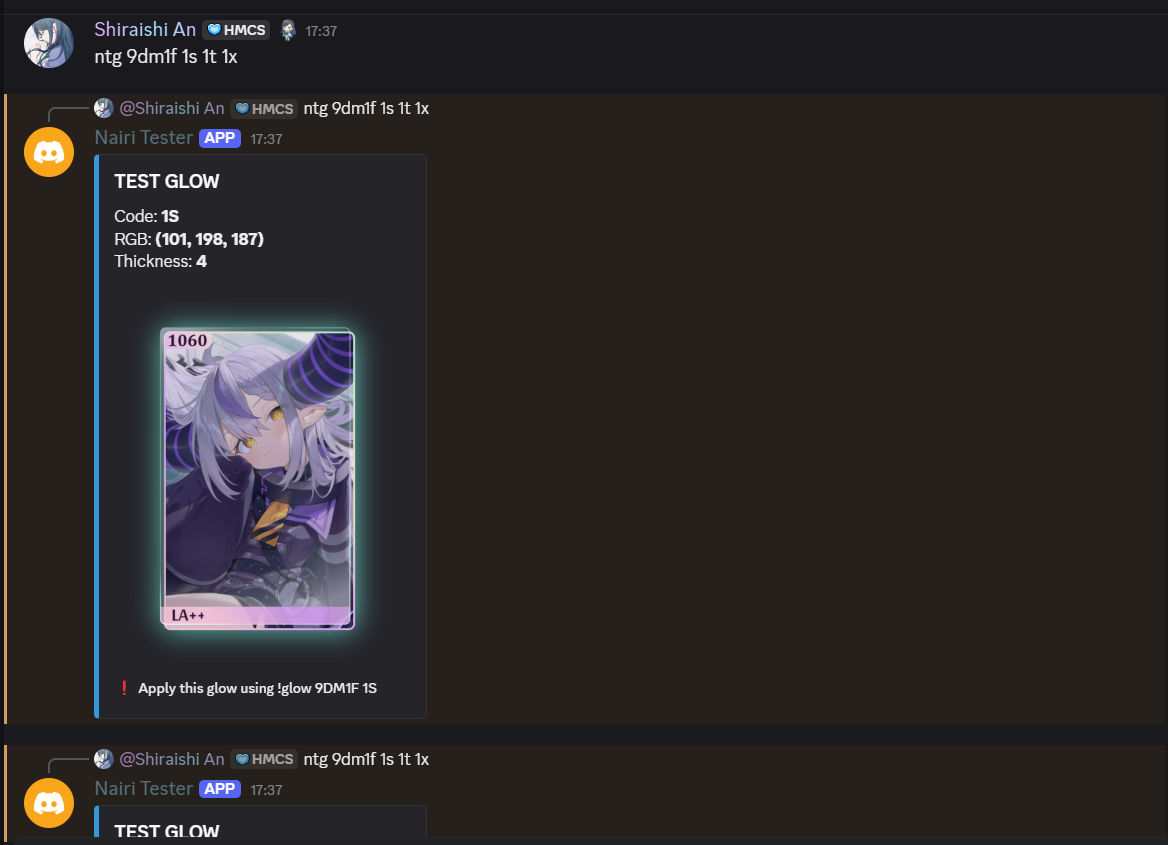
  • To test more than one glow at the same time, run the command <p>Ntg <cardcode> <glowcode> <glowcode> or <p>Ntestglows <cardcode> <glowcode> <glowcode>.
    • The bot will send embeds with each glow test separately.
  • Glow thickness ranges from 0-5. Changing a glow’s thickness costs 150

  • To change a glow’s thickness, run the command <p>Ct <glowcode> or <p>Changethickness <glowcode>.
  • We currently have 6 thickness levels to choose from:
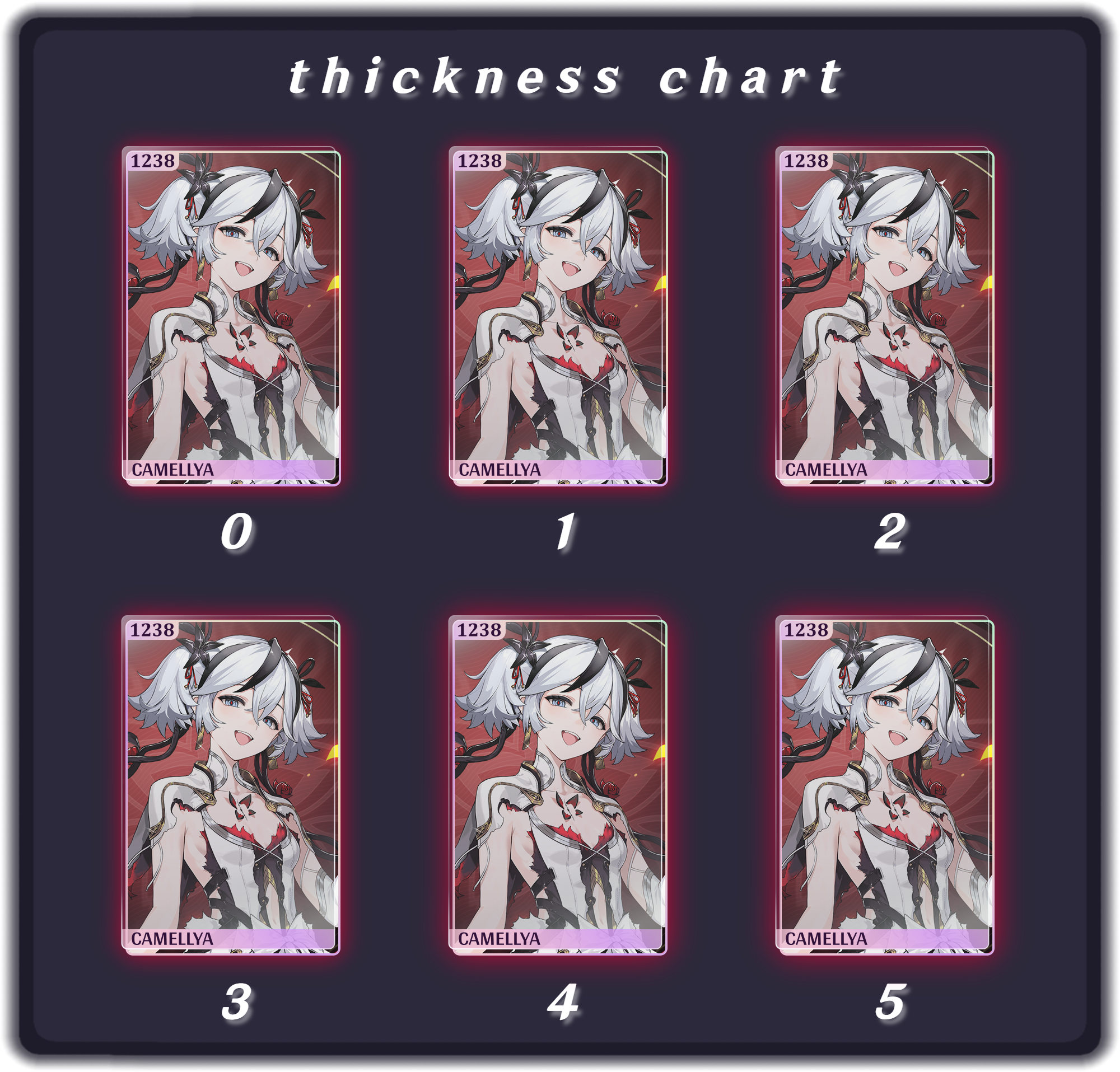
  • When you run the command, the but will send an embed showing:
    • Current thickness.
    • displayed thickness (selected)
  • You can test each level by clicking the numbered buttons before confirming any changes.
    • Note: You can only change the thickness of the glow itself, not the glow applied to a card.

Should you need any further help feel free to